1. Open your Gmail account - Click on the Settings Icon > Settings
2. Click on Forwarding and POP/IMAP from the Menu
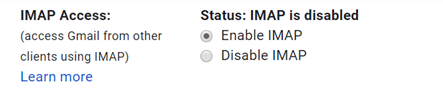
3. Select Enable IMAP - Found under the heading Status: IMAP is Disabled
4. Go to your Google Account - Found under your profile image
5. Select Sign in and Security > turn on 2 step verification
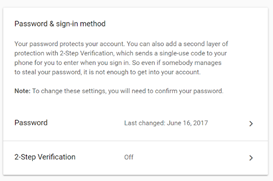
6. Click Get Started and Follow the on-screen prompts to complete
7. Go Back to Google Account Page
8. Select App Passwords
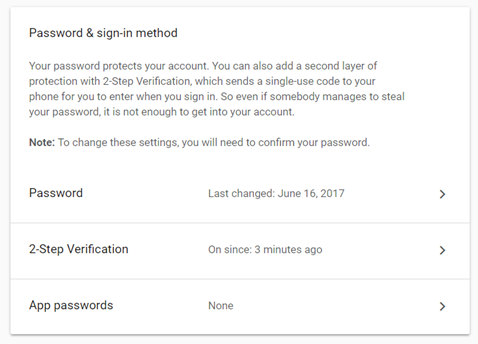
9. Select Mail and choose Device > Click Generate (Make a Note of the Password)
10. Go to Outlook
11. Click File > Add an Account
12. Enter Gmail Email > Click Connect
13. Enter App Password > Click Connect
14. Click Done and your account will be added.

Comments
0 comments
Please sign in to leave a comment.